
Samsung Email on Android — Setup (IMAP)
Set up your Precision Web Hosting email in the Samsung Email app, pre-installed on Samsung Galaxy phones. IMAP is recommended so your mail stays in sync across all your devices.
Manual setup method
Tip: click any value below to copy it.
- Incoming mail server (IMAP):
imap.your-actual-domain.com— port993(SSL) - Outgoing mail server (SMTP):
smtp.your-actual-domain.com— port587(STARTTLS) - Username: your full email address (e.g.
youractual@your-actual-domain.com) · Password: your email password
IMAP is recommended so your email stays in sync across all your devices.
(If you select to use POP instead, the POP incoming uses mail.your-actual-domain.com on port 995/SSL.)
Set up the Samsung Email app
Samsung Email comes pre-installed on Samsung Galaxy phones. Wherever you see your-actual-domain.com, use your real domain name, and use your full email address and password.
1
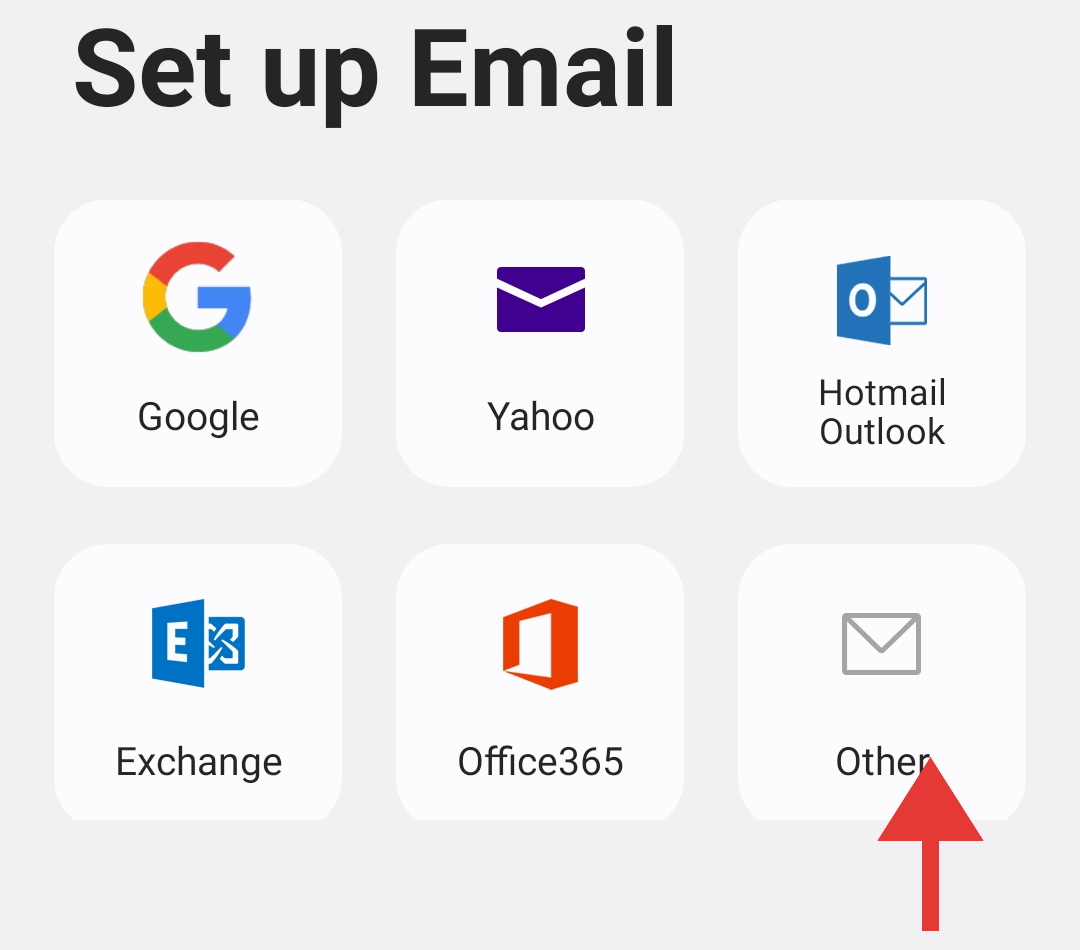
Open the Samsung Email app and tap Add account. On the Set up Email screen, tap Other (not Google).
2
Enter your full email address (in the screenshots we are using an example only:
youractual@your-actual-domain.com) and password, then tap Manual setup.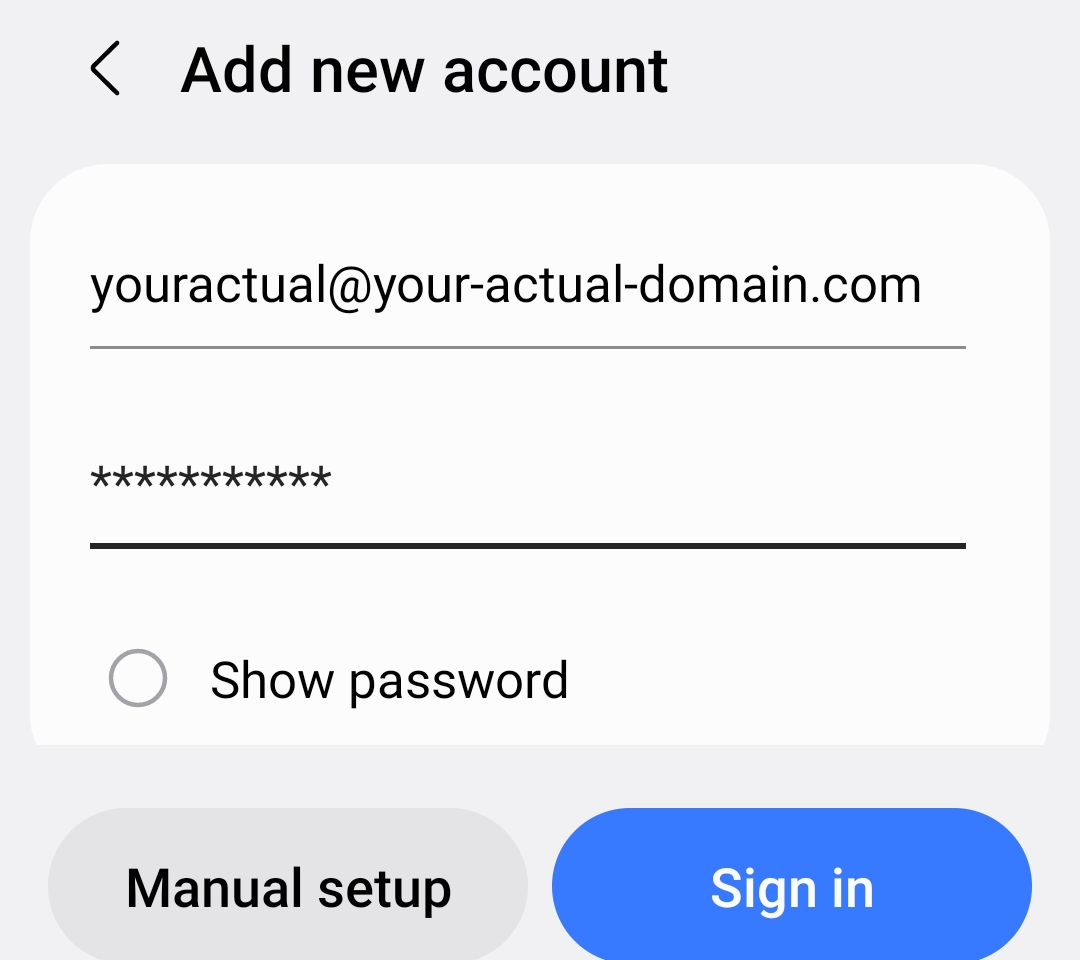
3
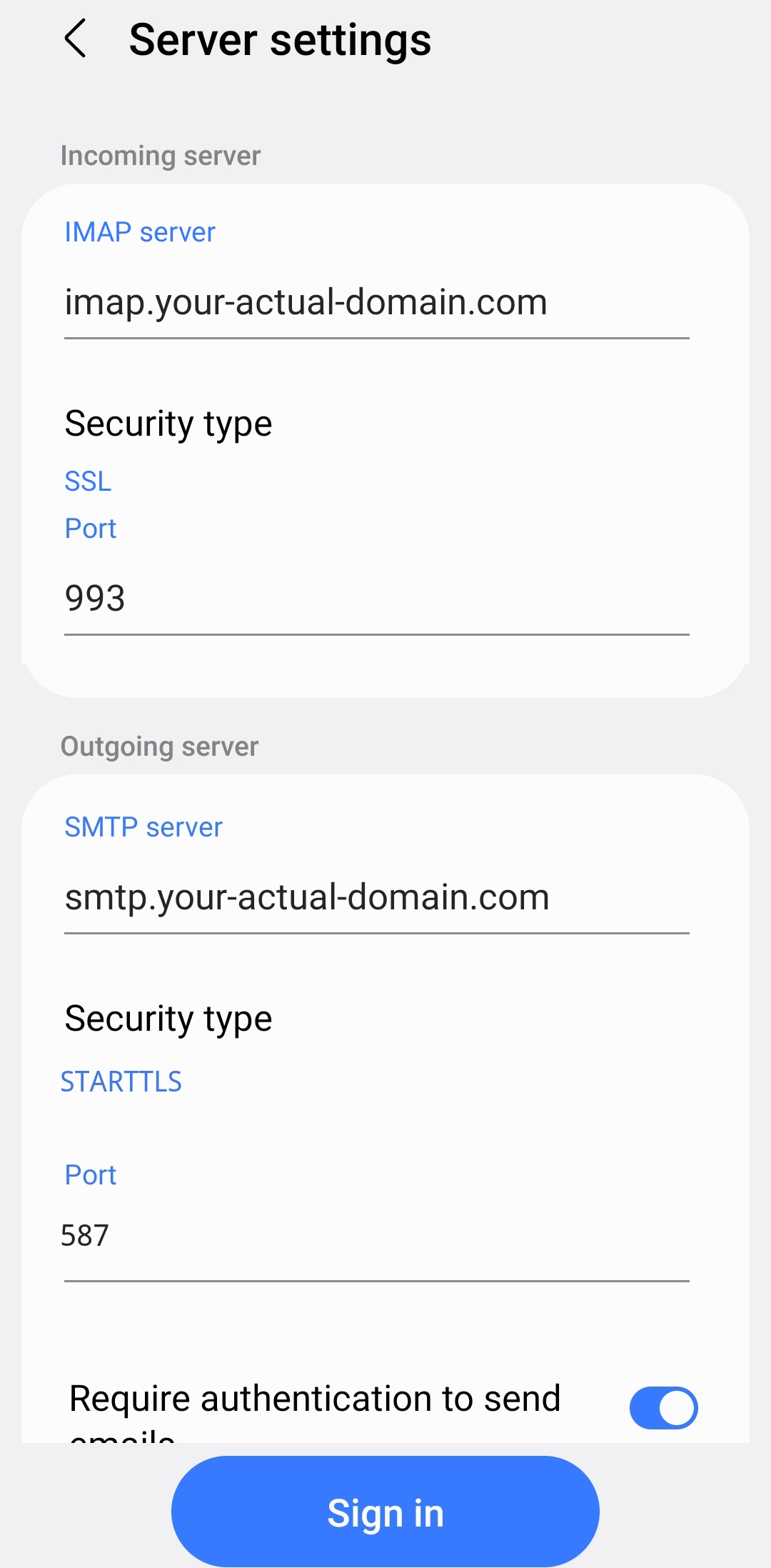
On the Server settings screen, enter both servers, then tap Sign in:
- Incoming — IMAP server:
imap.your-actual-domain.com· Security type SSL · Port993 - Outgoing — SMTP server:
smtp.your-actual-domain.com· Security type STARTTLS · Port587 - Require authentication to send emails: on
4
Samsung checks the settings and adds your account — your mail syncs into the Samsung Email app.