Outlook Email Setup
Manual setup method
Tip: click any value below to copy it.
- Incoming mail server (IMAP):
imap.yourdomain.com— port993(SSL/TLS) or143(STARTTLS) - Outgoing mail server (SMTP):
smtp.yourdomain.com— port587(SSL/TLS) - Username: your full email address (e.g.
you@yourdomain.com) · Password: your email password
IMAP is recommended so your email stays in sync across all your devices.
(If you select to use POP instead, the POP incoming uses mail.yourdomain.com on port 995/SSL.)
After creating your email account in your /siteadmin area, you can set it up in Outlook as an IMAP account — generally the best choice if you check the same account on multiple devices.
Your incoming (IMAP) server is imap.[ your actual domain name here ] and your outgoing (SMTP) server is smtp.[ your actual domain name here ].
Set up Outlook — step by step (New Outlook for Windows)
These screens are from the new Outlook for Windows. Wherever you see your-actual-domain.com, use your real domain name, and use your full email address and password.
1
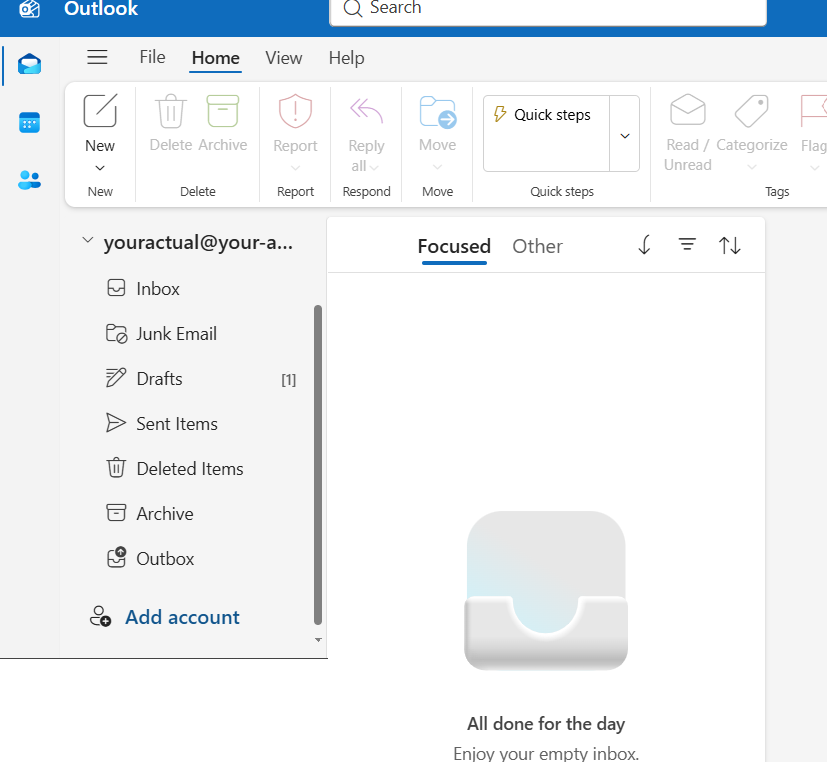
Open Outlook and choose Add account at the lower left. Enter your full email address (for example
you@your-actual-domain.com) and click Continue.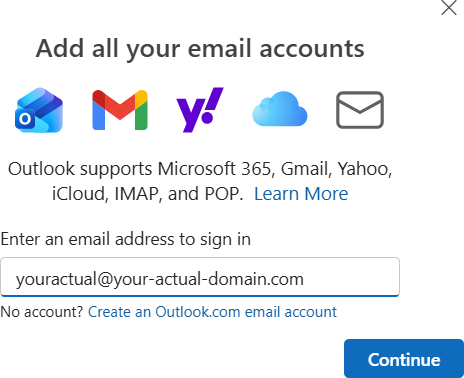
2
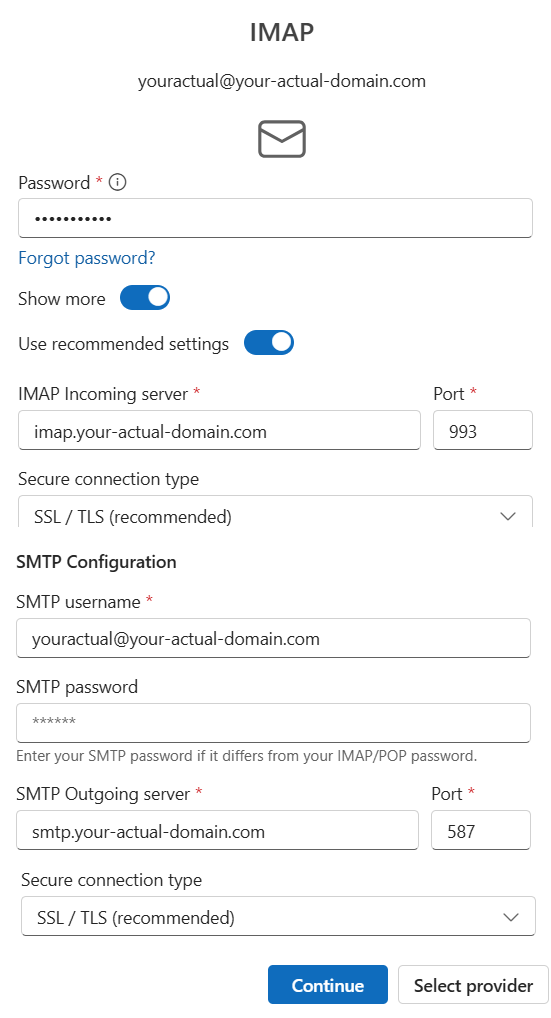
If Outlook asks for the account type, choose IMAP. Turn on Show more, enter your password, confirm the settings below, then click Continue:
- IMAP Incoming server:
imap.your-actual-domain.com· Port993· SSL/TLS - SMTP Outgoing server:
smtp.your-actual-domain.com· Port587· SSL/TLS - Username / SMTP username: your full email address
- SMTP password: same as your IMAP password
3
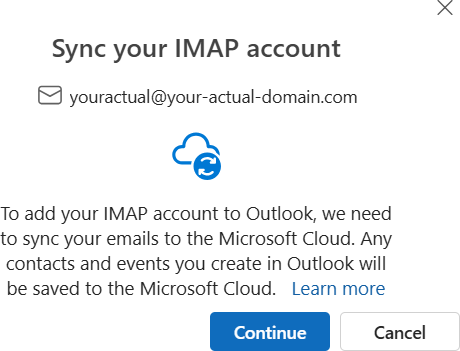
Outlook asks to sync your IMAP account to the Microsoft Cloud. Click Continue.
4
That’s it — your account appears in Outlook and begins syncing your mail.