Gmail on Android — Email Setup (IMAP)
Set up your email (for any account that we host) in the Gmail app on your Android phone. The Gmail app is on nearly every Android device and can host any email account — not just @gmail.com addresses. We recommend IMAP so your mail stays in sync across all your devices.
Manual setup method
Tip: click any value below to copy it.
- Incoming mail server (IMAP):
imap.your-actual-domain.com— port993(SSL/TLS) or143(STARTTLS) - Outgoing mail server (SMTP):
smtp.your-actual-domain.com— port587(STARTTLS) - Username: your full email address (e.g.
youractual@your-actual-domain.com) · Password: your email password
IMAP is recommended so your email stays in sync across all your devices.
(If you select to use POP instead, the POP incoming uses mail.your-actual-domain.com on port 995/SSL.)
Set up the Gmail app (Android)
The Gmail app can hold any email account — not just @gmail.com addresses. Wherever you see your-actual-domain.com, use your real domain name, and use your full email address and password.
1
Open the Gmail app, tap your profile picture (top right), then Add another account.
2
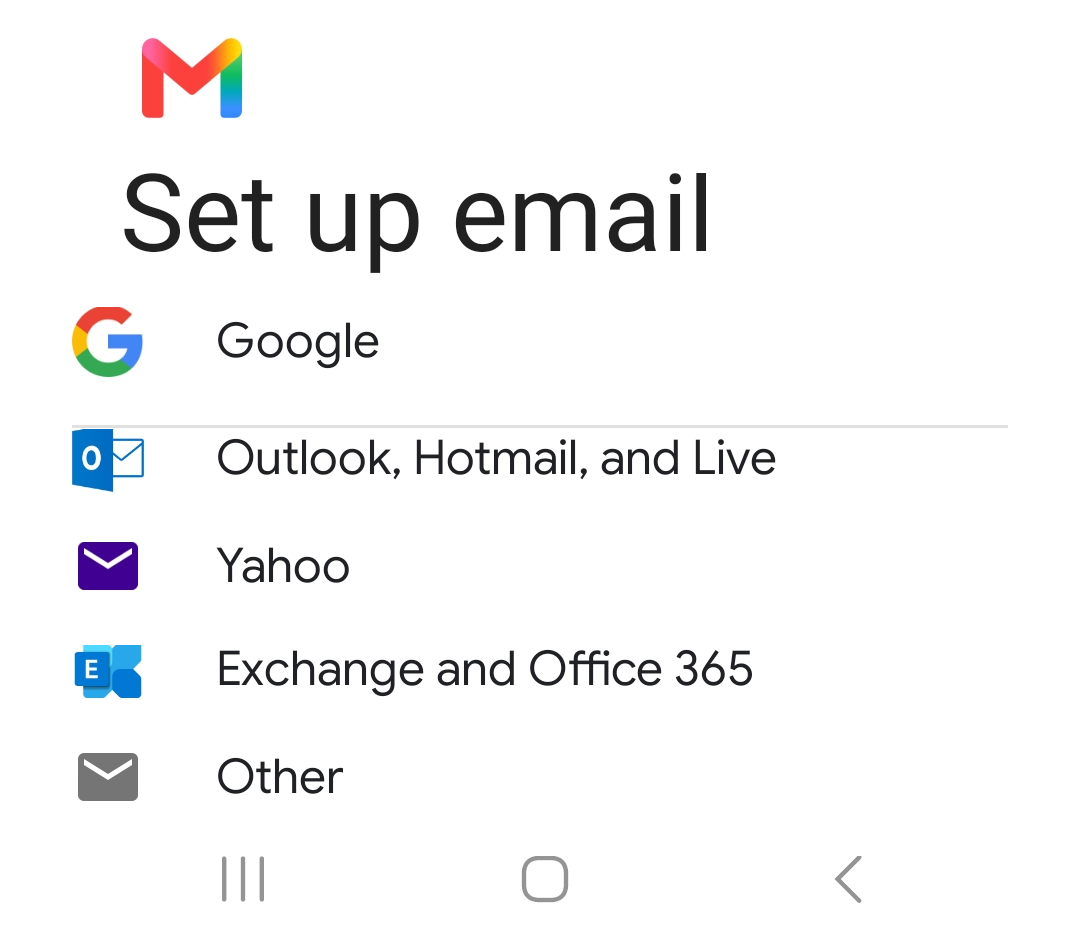
On Set up email, tap Other (not Google).
3
Enter your full email address (
youractual@your-actual-domain.com), then tap Manual setup. If asked, choose Personal (IMAP).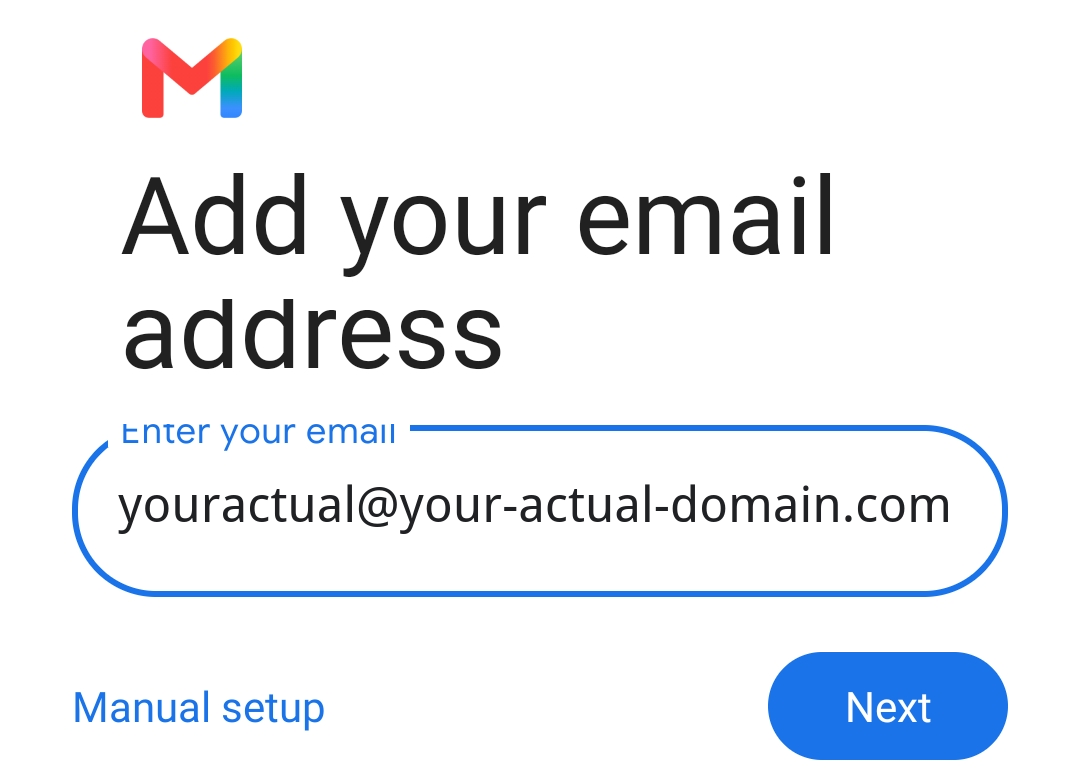
4
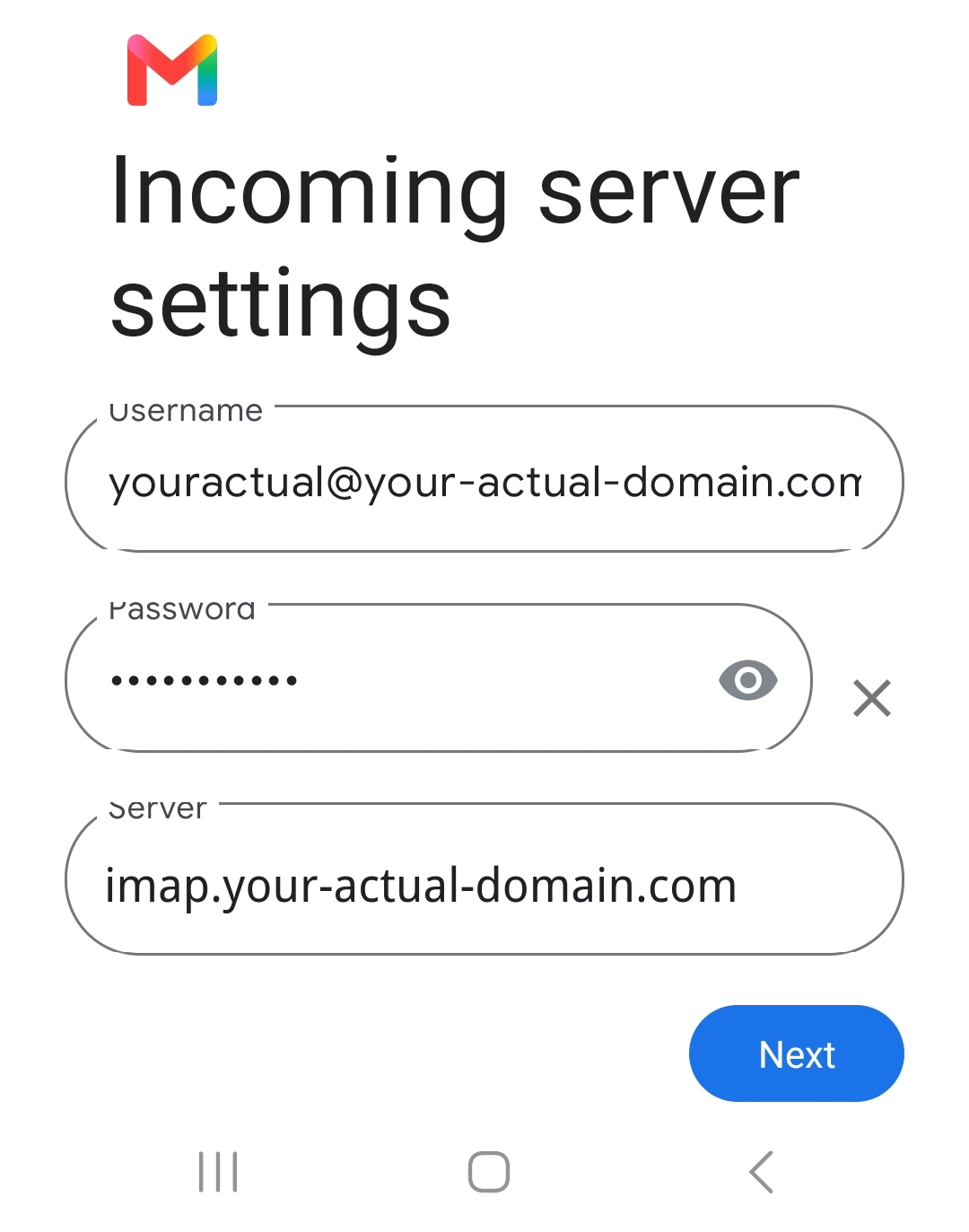
On Incoming server settings, enter:
- Username: your full email address
- Password: your email password
- Server:
imap.your-actual-domain.com
5
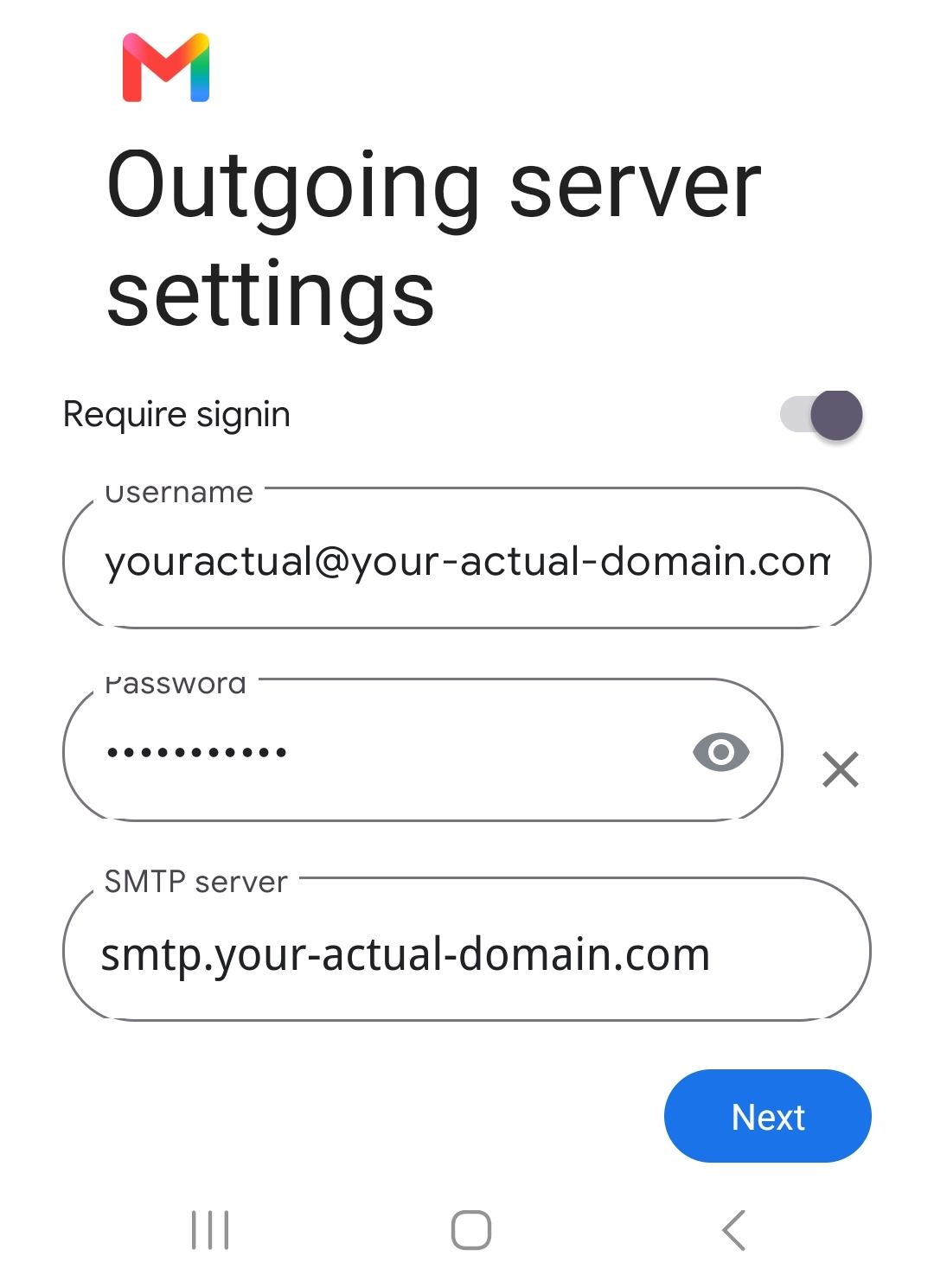
On Outgoing server settings, leave Require sign-in on and enter:
- SMTP server:
smtp.your-actual-domain.com - Username / Password: your full email address and password
6
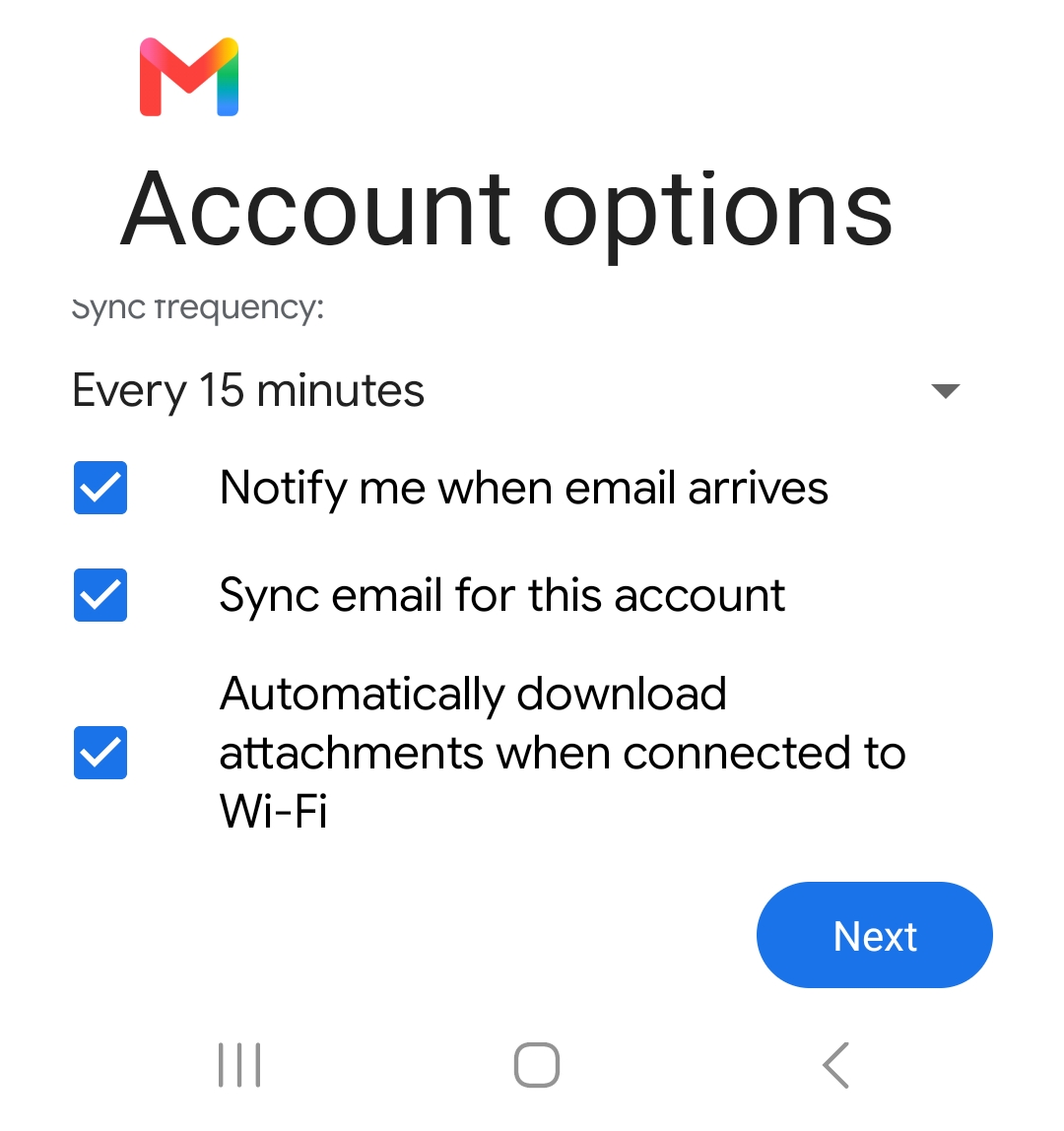
On Account options, the defaults are fine (sync every 15 minutes, notify on new mail). Tap Next.
7
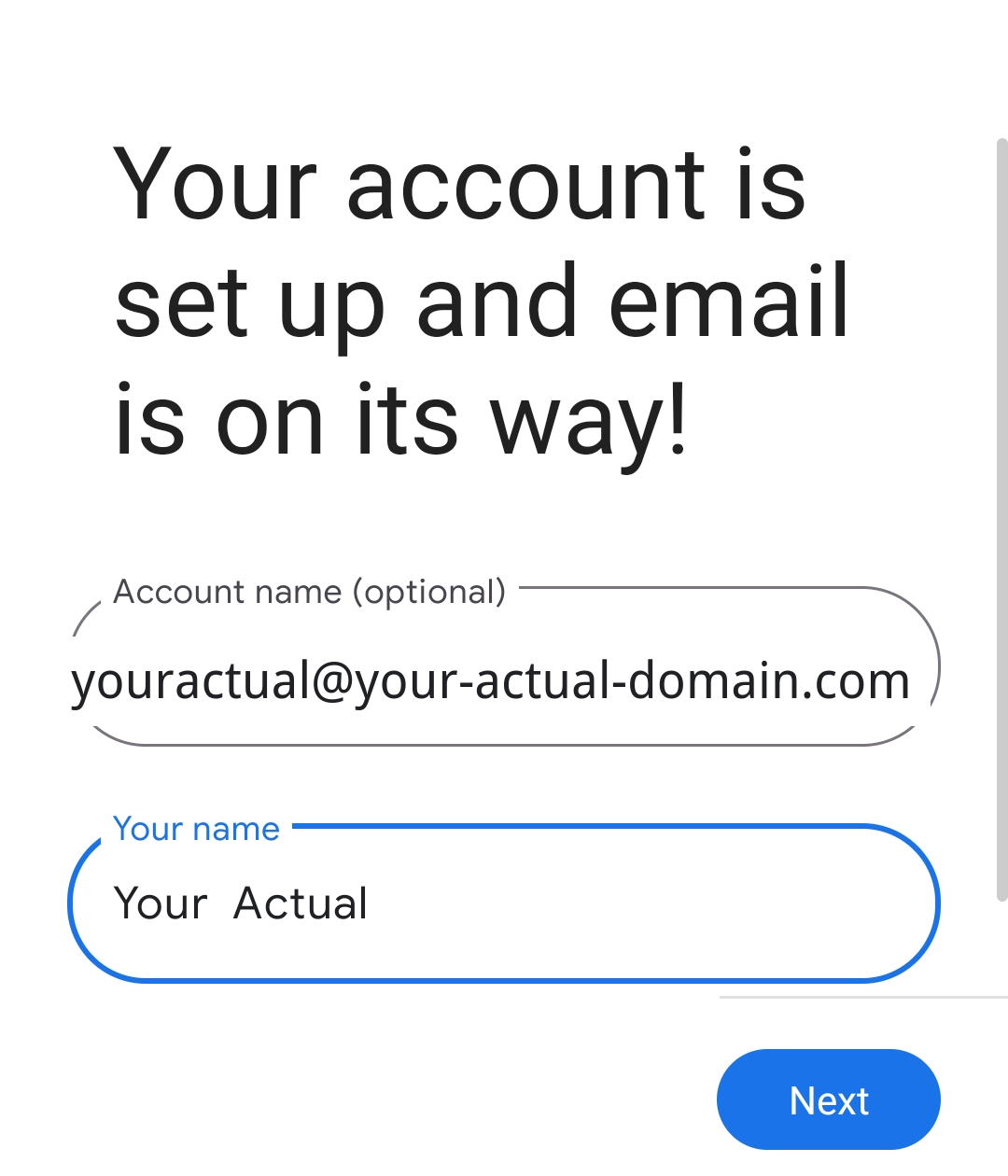
Enter your name, tap Next, and you’ll see “Your account is set up and email is on its way!” Your mail now appears in the Gmail app.